Plan your first project
Go to your project plan and click on a task to see its details, in the right-hand slide panel with the task details, click on the UltimPM App logo .

If you get the following prompt, hit the « Connect to UltimPM » button :

This will open the UltimPM dashboard in another browser tab. Go back to the ASANA.COM project once the UltimPM dashboard successfully loads.
Select the portfolio projects from the dropdown fields on the form that has now appeared in the center of the project plan view :
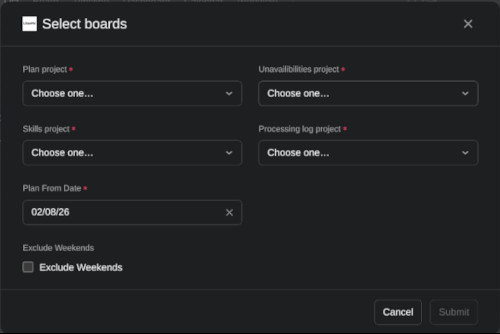
The following table presents the different project plans to select from your project portfolio:
| Project label | Description |
|---|---|
Plan Project  | Pick the main project that contains the tasks that you need scheduled. |
Unavailabilities Project  | Select the plan that lists the resources' unavailabilities |
Skills Project  | Select the plan that lists the resources' skills |
Processing logs Project  | Select the project that should be empty initially and which UltimPM will add tasks to in order to show the progress of the scheduling. see planning status for more details. |
Plan Start Date  | Select a date which will be the earliest tasks' start date. |
Exclude Weekends  | When this checkbox is checked, all employees are set as unavailable on weekends (Saturday and Sunday) |
Once the projects have been selected, the « Submit » button is enabled. Click on it to launch the UltimPM automatic scheduling:

Once the form has disappeared, you can head to the Processing Logs project to follow the progress. When UltimPM has finished planning, a task will be created indicating that all tasks have been updated.
You can now head to your project plan to check the task sequence and assignments.